
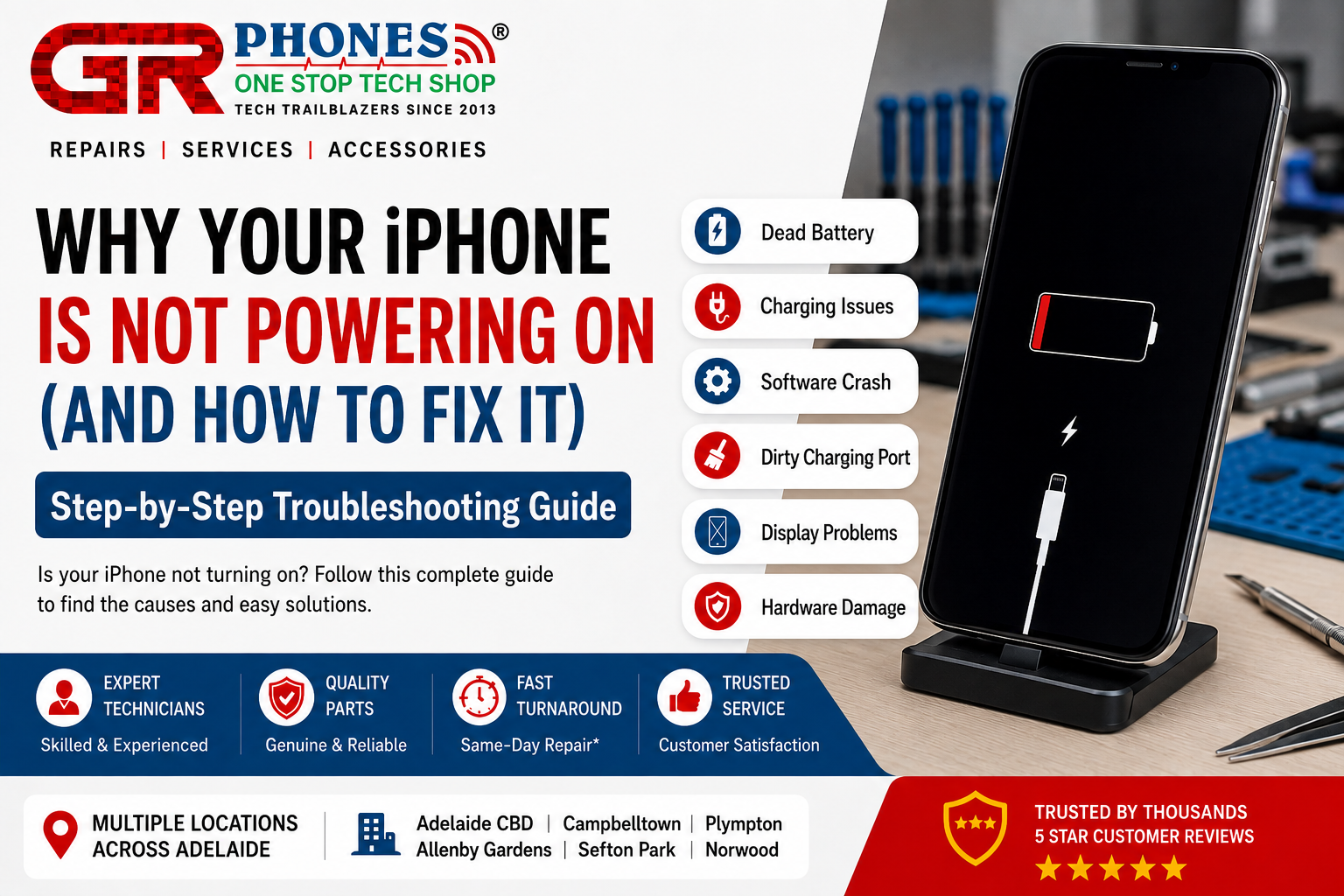
Have you ever pressed the power button on your iPhone and nothing happened? A black screen, no Apple logo, and no response can be worrying. However, an iPhone not powering on does not always mean that your device has a serious hardware problem. In many cases, the issue can be caused by a drained battery, charging problem, software crash, damaged cable, or temporary system failure.
The good news is that you can try several simple troubleshooting steps before taking your iPhone to a professional. This guide explains the common reasons why an iPhone may not turn on and provides step-by-step solutions.
Why Is My iPhone Not Powering On?
There are several possible reasons why your iPhone is not turning on. The most common causes include:
- Completely drained battery
- Faulty charging cable or adapter
- Damaged charging port
- Frozen or crashed iOS software
- Failed force restart
- Water or physical damage
- Battery failure
- Internal hardware problems
If your iPhone recently fell, came into contact with water, or stopped working after a repair, the problem may require professional diagnosis.
Step 1: Charge Your iPhone Properly
The first thing you should do is connect your iPhone to a reliable charger.
Use an original or good-quality charging cable and power adapter. Connect the charger directly to a wall power outlet and leave the iPhone charging for at least 30 minutes.
If the battery was completely empty, your iPhone may not immediately show the charging symbol.
After 30 minutes, check whether the Apple logo or charging screen appears.
What if the iPhone Still Does Not Charge?
Try the following:
- Use another charging cable.
- Try a different power adapter.
- Use another wall outlet.
- Check the charging port for dust or debris.
- Try charging from another reliable power source.
Avoid using damaged or exposed charging cables because they can create additional problems.
Step 2: Check the Charging Port
Dust, lint, and other debris can accumulate inside the iPhone charging port. This can prevent the charging cable from making proper contact.
Inspect the port under good lighting. If you notice visible debris, clean it carefully using an appropriate non-metallic tool.
Do not insert sharp metal objects into the charging port because you could damage the internal components.
If the phone still does not respond after cleaning and charging, the charging port itself may need professional inspection.
Step 3: Perform a Force Restart
Sometimes an iPhone appears completely dead because iOS has frozen. In this situation, a force restart can help.
For most newer iPhone models:
- Quickly press and release the Volume Up button.
- Quickly press and release the Volume Down button.
- Press and hold the Side button.
- Continue holding the Side button until the Apple logo appears.
The Apple logo may take several seconds to appear, so do not release the button too quickly.
A force restart does not normally erase your personal data. It simply forces the device to restart when the normal restart process is not responding.
Step 4: Check for Signs of Screen Problems
Sometimes the iPhone is actually powered on, but the display is not working.
You may be able to identify this by checking whether:
- The phone vibrates.
- You hear notification sounds.
- The device becomes warm while charging.
- You can hear incoming calls.
- The computer recognizes the iPhone.
If the device appears to be functioning but the screen remains completely black, the problem may be related to the display rather than the battery or motherboard.
In this situation, professional iPhone repair may be necessary.
Step 5: Try Connecting the iPhone to a Computer
If your iPhone still does not turn on, connect it to a trusted computer using a suitable cable.
Depending on the condition of the device, the computer may recognize the iPhone even if the screen is not displaying anything.
If the device is detected, there may be an opportunity to troubleshoot or restore the software.
Before performing a restore, remember that restoring an iPhone can erase data depending on the process used. If your data is important, professional assistance may be safer.
Step 6: Consider Recent Physical or Water Damage
Think about what happened before your iPhone stopped working.
Did you recently:
- Drop the phone?
- Crack the screen?
- Spill liquid on it?
- Expose it to moisture?
- Use an unofficial charger?
- Replace the battery?
- Repair the charging port?
Physical or liquid damage can affect the battery, display, charging system, or internal components.
If your iPhone has suffered liquid damage, avoid repeatedly attempting to charge it. Get professional assistance as soon as possible.
Common Reasons an iPhone Won’t Turn On
Understanding the possible cause can make troubleshooting easier.
Dead Battery
A completely discharged battery is one of the simplest explanations. Charging the phone for 30 minutes or longer may resolve the issue.
Charging Cable or Adapter Problem
A damaged cable or faulty adapter can prevent the battery from receiving power. Testing another reliable charger can help identify the problem.
Software Crash
An iOS software crash can make the screen appear completely unresponsive. A force restart may solve the problem.
Charging Port Damage
A damaged or blocked charging port can stop the iPhone from charging properly.
Battery Failure
If the battery is old or damaged, the phone may not hold or receive a charge correctly.
Display Failure
The phone may be running even though the screen remains black. In this case, the display assembly may need inspection.
Internal Hardware Failure
Problems with the motherboard or power-management components can also prevent an iPhone from starting. These issues usually require professional diagnosis.
When Should You Visit an iPhone Service Center?
If you have tried charging the phone, checking the cable, cleaning the charging port, and performing a force restart but your iPhone still does not respond, it is time to consider professional help.
You should especially seek assistance if your iPhone has:
- Water damage
- Severe physical damage
- A swollen battery
- A completely black screen
- Charging problems
- Repeated restart issues
- No response after a force restart
A professional iPhone service center can inspect the battery, charging port, display, and internal hardware to determine the actual cause.
How to Prevent iPhone Power Problems
Taking care of your iPhone can reduce the possibility of future power-related problems.
Use reliable charging accessories and avoid repeatedly using damaged cables. Keep the charging port clean and protect your device from moisture and accidental drops.
It is also a good idea to keep iOS updated and maintain regular backups of important photos, contacts, documents, and other personal data.
If your battery performance has significantly decreased, consider having the battery professionally checked instead of waiting until the phone stops working completely.
FAQs
Why is my iPhone not turning on or charging?
Your iPhone may not turn on or charge because of a dead battery, faulty charger, damaged charging cable, dirty charging port, or internal hardware problem. Try another charger and leave the iPhone connected for 20 to 30 minutes. If it still does not respond, professional inspection may be needed.
Why is my iPhone not turning on even after charging?
If your iPhone does not turn on after charging, try a force restart. If the Apple logo does not appear, the problem may be related to the battery, charging port, screen, software, or internal hardware. A technician can check the device and identify the cause.
Why does my iPhone suddenly turn off and not turn on?
An iPhone may suddenly turn off because of a weak battery, software problem, overheating, or hardware damage. Try charging the phone and performing a force restart. If it still does not turn on, professional repair may be required.
Why is my iPhone not turning on but vibrating?
If your iPhone vibrates but the screen stays black, the phone may still be working. The problem could be with the display or an internal connection. If the phone vibrates, rings, or receives notifications but shows no picture, the screen should be checked by a professional.
Why is my iPhone screen black but it is still on?
Your iPhone may be powered on even though the screen is black. If you can hear sounds, receive calls, or feel vibrations, the display may be damaged. Try a force restart first. If the screen remains black, professional diagnosis may be needed.
Final Thoughts
An iPhone not powering on can happen for many different reasons, and it does not necessarily mean that your device is permanently damaged. Start with simple solutions such as charging the phone, checking the charging accessories, inspecting the charging port, and performing a force restart.
If these steps do not work, avoid repeatedly experimenting with the device. A professional technician can diagnose the problem and determine whether the issue involves the battery, charging port, display, software, or internal hardware.
Getting the correct diagnosis is the best way to choose the right iPhone repair solution and avoid unnecessary repairs or expenses. If your device continues to remain unresponsive, visiting a trusted iPhone service center can help identify the problem and get your iPhone working again.