
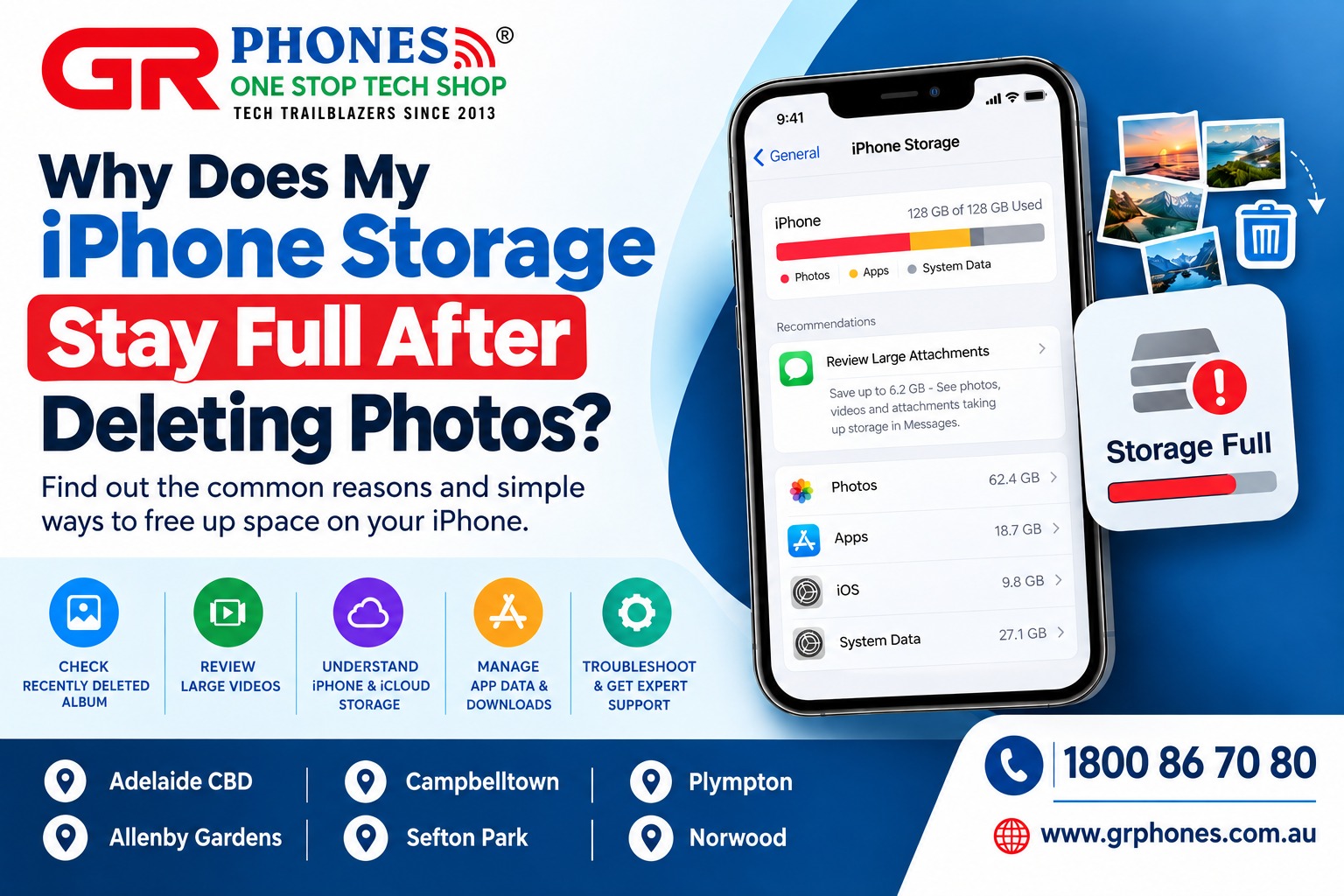
Deleting photos from your iPhone seems like an easy way to free up storage space. You remove unwanted pictures and videos, expecting to see more available space immediately. However, sometimes your iPhone storage remains almost full even after deleting hundreds of photos. This can be frustrating, especially when your device continues displaying storage warnings.
If you are wondering why your iPhone storage stays full after deleting photos, several factors could be responsible. Deleted pictures may still be stored temporarily, applications might be using more space than expected, or your iPhone may need time to update its storage information.
If the problem continues, understanding common storage issues can help you decide whether you need simple troubleshooting or professional iPhone Repairs to get your device working properly again.
1. Check the Recently Deleted Album
One of the most common reasons an iPhone does not show more available storage after deleting photos is the Recently Deleted album.
When you delete a photo or video, it usually moves to the Recently Deleted album rather than disappearing permanently. Deleted items generally remain there for up to 30 days, giving you time to recover anything you might need.
However, these items can continue occupying storage until they are permanently deleted.
To check this folder, open the Photos app and navigate to Recently Deleted. Authenticate with Face ID, Touch ID or your passcode if required. Review the items and permanently delete only those you no longer need.
Before removing anything permanently, make sure you have saved important pictures and videos elsewhere if necessary. Once permanently deleted, these items may no longer be recoverable through the Recently Deleted album.
If you use iCloud Photos, remember that deleting a photo can also remove it from other devices connected to the same photo library. Check your synchronisation settings before deleting important memories.
2. Large Videos May Be Taking Up More Space
Photos are not always the biggest storage consumers on an iPhone. High-resolution videos, slow-motion recordings and long screen recordings can occupy significantly more space than ordinary pictures.
For example, recording videos in 4K can use substantial storage, particularly when you capture long clips regularly. Even after deleting hundreds of photos, your available storage might barely change if several large videos remain on the device.
Open the Photos app and review your video collection. Look for unnecessary recordings, duplicate clips and old screen recordings that you no longer need.
You should also check Settings > General > iPhone Storage to understand how much space is available and which categories are consuming it.
Removing a few large, unnecessary videos can sometimes free up more space than deleting hundreds of smaller photographs.
3. Understand the Difference Between iPhone and iCloud Storage
Another reason for confusion is the difference between iPhone storage and iCloud storage.
Your iPhone has a fixed amount of physical storage, such as 64 GB, 128 GB or 256 GB. iCloud storage is separate and can hold supported data, including photos, backups and files.
Having available iCloud storage does not automatically increase the physical storage capacity of your iPhone.
If you use iCloud Photos, the Optimise iPhone Storage feature can help reduce the space occupied by your photo library on the device. Your iPhone can keep smaller versions locally while storing full-resolution originals in iCloud.
To check these settings, open Settings, tap your name, select iCloud and open Photos. Review whether photo synchronisation and Optimise iPhone Storage are enabled.
If you want to preserve your photos, understand how your iCloud library works before deleting files to free up space.
4. Applications May Be Using Hidden Storage
Deleting photos will not solve your storage problem if applications are consuming most of your available space.
Social media platforms, messaging apps, browsers and streaming services can accumulate downloaded files, temporary data, attachments and cached content over time.
WhatsApp is one example. Conversations may contain thousands of photographs, videos, voice messages and documents. These attachments can occupy space even when you have deleted similar images from your main Photos library.
Streaming applications can also store downloaded movies, songs and episodes for offline viewing.
To identify applications using the most storage, open Settings > General > iPhone Storage. Review the list and check which apps occupy the largest amount of space.
Open the relevant applications and remove unnecessary downloads or attachments using their built-in storage management options.
You can also offload unused apps through iPhone Storage. Offloading removes the application while generally preserving its documents and data. This can help you reclaim space without losing everything associated with the app.
Before deleting an application completely, check whether its locally stored information will also be removed.
5. Your iPhone May Not Have Updated the Storage Information
Sometimes, your iPhone may need additional time to update the available storage figure after you delete many photos.
The device may still be processing changes to the photo library, updating storage calculations or synchronising information with iCloud.
If you have recently removed a large number of files, wait a little while before making further changes.
You can also try these simple steps:
- Close the Photos app and reopen it.
- Restart your iPhone.
- Connect to a stable Wi-Fi network if iCloud synchronisation is involved.
- Open Settings > General > iPhone Storage and allow the information to load.
After restarting your device, check the storage figure again.
If it remains unchanged, review the storage breakdown rather than repeatedly deleting more photos. The issue may be related to application data, videos, downloads or system files.
If you experience other device problems at the same time, iPhone troubleshooting can help identify whether the issue is related to software, storage management or another underlying cause.
If the storage information still does not update after restarting your device, iPhone storage issues may need further investigation.
6. System Data Can Occupy Valuable Space
Your iPhone needs storage for more than personal photos and applications. iOS also uses space for temporary files, caches, logs and other system-related information.
This information may appear under System Data in the iPhone Storage screen.
The amount of System Data can change depending on device activity, software processes and other factors. Some temporary files are removed automatically when they are no longer needed.
However, System Data can sometimes occupy more space than expected, particularly when your device is already running low on storage.
Start by restarting your iPhone and checking whether an iOS update is available. Before installing an update, ensure that you have enough available space and a suitable backup.
Avoid using unknown cleaning applications or deleting unfamiliar system files. These methods may not resolve the issue and could create additional problems.
If System Data continues occupying an unusually large amount of space, further investigation may help identify the cause.
7. Messages and Downloads Can Also Fill Your Storage
Your Photos app is not the only place where images and videos are stored.
Attachments in Messages, documents in the Files app, downloaded media and offline files can all contribute to a full iPhone.
For example, you might receive a large video through Messages and delete a similar video from Photos without removing the original attachment from the conversation.
To investigate this, review the recommendations shown in Settings > General > iPhone Storage. Check large message attachments and remove files you no longer need.
You can also open the Files app and review the Downloads folder for unnecessary documents.
Always check files carefully before deleting them, particularly if they contain work documents, personal records or other information you may need later.
Managing these additional files can help you recover storage without removing photographs you want to keep.
8. When Should You Consider Professional Assistance?
If you have permanently deleted unnecessary photos, reviewed your applications and removed unwanted downloads but your iPhone storage still appears full, it may be time to investigate further.
Pay attention to additional symptoms, such as repeated storage warnings, applications closing unexpectedly, slow performance or difficulties installing software updates.
These problems do not automatically indicate hardware damage. In many cases, they are related to software, stored data or the way available space is being used.
A technician can help review the device and determine whether software troubleshooting or further inspection is necessary.
If you are experiencing persistent storage issues alongside other device problems, professional Apple iPhone repairs may help you identify the underlying issue and determine the appropriate next steps.
Before taking your device for service, back up important information whenever possible. Never share your Apple Account password with someone claiming it is required for a routine storage check.
Conclusion
When your iPhone storage stays full after deleting photos, the problem may not be the photos themselves. Items in Recently Deleted, large videos, application data, iCloud settings, system files and downloaded attachments can all contribute to limited storage.
Start by checking the Recently Deleted album, then review your storage breakdown under Settings > General > iPhone Storage. Remove unnecessary files carefully, check your applications and restart your device if the storage information does not update.
Most importantly, avoid permanently deleting important pictures or resetting your iPhone before checking your backup.
With a few careful checks, you can often identify what is consuming your storage and decide on a safe way to free up space. If the problem continues despite these steps, seek professional advice to determine what is preventing your device from working as expected.
FAQs
Why is my iPhone storage still full after deleting thousands of photos?
Your deleted photos may still be in Recently Deleted. Videos, app data, message attachments and System Data may also be using storage. Check Settings > General > iPhone Storage to identify the largest categories.
How do I permanently delete photos from my iPhone?
Open the Photos app, navigate to Recently Deleted, authenticate if required, select the unwanted items and permanently delete them. Remember that this removes the normal recovery option for those items.
Does deleting photos from my iPhone free up iCloud storage?
Deleting photos from iCloud Photos can free up iCloud storage after the deletion is processed and the items are permanently removed. However, synchronised deletions can affect your other devices, so check your backup and photo-sync settings first.
Why does my iPhone say storage is full when I have iCloud space?
iCloud storage and physical iPhone storage are separate. Having available iCloud space does not automatically increase the storage capacity of your device.
Should I reset my iPhone if storage remains full?
A factory reset should not be your first step. Review storage usage, remove unnecessary files and back up important information. Consider a reset only after appropriate troubleshooting and after confirming that you can safely restore your data.