
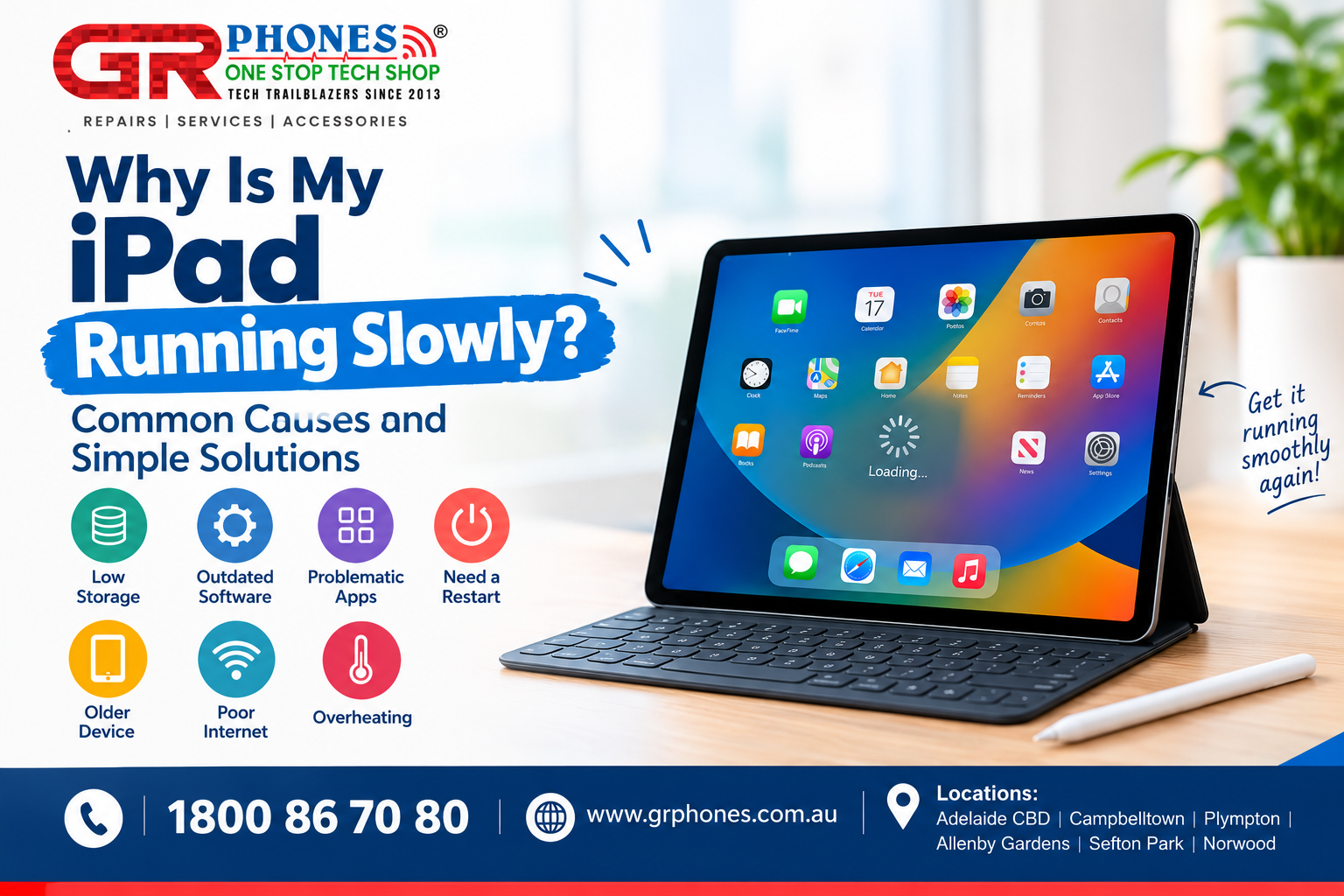
An iPad is useful for studying, working, watching videos, browsing the internet, and staying connected with others. However, when it starts running slowly, even simple tasks can become frustrating. Apps may take longer to open, websites may freeze, and the touchscreen may respond with a delay.
A slow iPad does not always mean something is seriously wrong. The problem may be caused by limited storage, outdated software, an application that is not working correctly, or background activities. In some cases, an older device or a hardware issue may also affect performance.
Understanding the possible causes can help you identify the issue and try suitable solutions before considering professional assistance. In this guide, we explain why your iPad may be running slowly and what you can do to improve its performance.
1. Insufficient Storage Space
One common reason an iPad may struggle to perform smoothly is limited available storage. Over time, photos, videos, downloaded files, games, and applications can fill up the device’s storage.
When storage is nearly full, you may experience difficulties downloading updates, saving new files, or using certain applications.
To check your iPad storage, open Settings, select General, and tap iPad Storage. You can review the available space and see which applications are using the most storage.
Remove unnecessary downloads, review large videos, and offload apps that you rarely use. Before deleting important files, make sure they are backed up.
For more detailed instructions, read our guide on how to free up storage space on your iPad without losing important files. Make sure this link points to the specific storage guide when you publish the article.
2. Too Many Background Activities
Some applications perform activities in the background even when you are not actively using them. These activities may include refreshing content, checking for updates, and synchronising information.
Although background activity is useful, unnecessary activity can sometimes affect responsiveness and battery life.
You can review Background App Refresh under Settings > General > Background App Refresh. Depending on your usage, you may choose to disable it for applications that do not need to update their content automatically.
If a particular application becomes unresponsive, close that app and reopen it. You generally do not need to force-close every application regularly because iPadOS manages background apps automatically.
If your iPad remains slow after adjusting these settings, check other possible causes rather than assuming background apps are responsible.
3. Outdated iPadOS Software
Apple regularly releases iPadOS updates that can include security improvements, bug fixes, and performance enhancements. If your iPad is running an older version, an existing software issue may contribute to unexpected behaviour.
To check for updates, open Settings, select General, and tap Software Update. Follow the instructions if an update is available.
Before updating, connect your iPad to a reliable Wi-Fi network, ensure the battery is sufficiently charged, and back up important information.
It is also important to check whether your particular iPad model supports the available software version. Older models may not receive every new release.
If an update is unavailable, your iPad may already be running the latest compatible version. In that case, investigate storage, applications, and other possible causes.
4. An App Is Causing Performance Problems
Sometimes, the problem is not the iPad itself but a particular application. An app may freeze, crash, take a long time to load, or use more resources than expected.
If your device becomes slow whenever you open a specific app, try these steps:
- Close and reopen the affected application.
- Check whether an app update is available in the App Store.
- Restart your iPad.
- Check whether the problem continues in other applications.
If the issue started immediately after installing or updating an app, that may provide a useful clue.
Reinstalling an app can sometimes resolve persistent problems, but it may remove locally stored information. Before deleting it, check whether your data is backed up or synchronised with an account.
If several applications are slow, the cause may be related to storage, software, network connectivity, or the device’s hardware rather than one particular app.
5. Your iPad Needs a Restart
An iPad that remains switched on for long periods may occasionally experience temporary software issues. Restarting the device can help resolve some temporary problems by allowing applications and system processes to start again.
To restart your iPad, use the method appropriate for your model. On many models without a Home button, press and hold a volume button and the top button until the power-off slider appears. On models with a Home button, press and hold the top button until the slider appears.
Move the slider to turn off the device, wait a few seconds, and then turn it back on using the top button.
A restart is a simple troubleshooting step, but it will not fix every cause of slow performance. If your iPad repeatedly freezes or becomes unresponsive after restarting, further investigation may be necessary.
6. The iPad Is Getting Older
Like other electronic devices, iPads have hardware limitations. Older models may struggle with newer applications, demanding games, high-resolution content, or software features that require more processing power.
You might notice slower app launches, longer loading times, or reduced responsiveness compared with when the device was new.
First, make sure your iPad has sufficient free storage and is running the latest compatible software. Remove applications you no longer need and check whether the performance problem occurs across multiple apps.
However, software adjustments cannot eliminate every hardware limitation. If your iPad is an older model, some newer applications may simply require more resources than the device can comfortably provide.
Consider your usual needs before deciding whether to continue using the device, seek technical assessment, or upgrade to a newer model.
7. Poor Internet Connectivity
Sometimes, an iPad appears slow because the internet connection is weak rather than because the device itself is experiencing a performance problem.
Websites may take a long time to load, videos may buffer, and cloud-based applications may struggle to synchronise files.
To check whether the connection is responsible, try opening a different website or online application. If possible, compare performance using another reliable Wi-Fi network.
If other devices connected to the same network are also slow, restarting your router may help. You can also toggle Wi-Fi off and on again on your iPad.
If offline applications respond quickly but online services remain slow, the internet connection may be the main issue. Investigate the network before making major changes to your iPad.
8. The iPad Is Overheating
High temperatures can affect device performance. An iPad may become warm when running demanding games, charging, recording videos, or performing intensive tasks for an extended period.
If the device becomes unusually hot, stop demanding activities and move it away from direct sunlight or other heat sources. Allow it to cool naturally before continuing to use it.
Avoid placing the iPad in a refrigerator or using ice to cool it, as sudden temperature changes and condensation can cause damage.
If overheating happens repeatedly during light use, or the device displays temperature warnings, investigate the cause rather than ignoring it.
Persistent overheating accompanied by slow performance may require professional assessment, particularly if the iPad also shuts down unexpectedly.
9. When Should You Seek Professional Help?
If you have checked storage, updated compatible software, restarted the iPad, and tested different applications, but the device remains unusually slow, the problem may need further investigation.
Pay attention to additional symptoms, including:
- Frequent freezing or unexpected restarts.
- Applications repeatedly crashing across the device.
- The touchscreen responding inconsistently.
- Unusual overheating during normal activities.
- Performance problems that began after physical damage or liquid exposure.
These symptoms do not automatically confirm a hardware fault, but they can help identify when basic troubleshooting is no longer enough.
Before arranging an assessment, back up your important files if possible. Explain when the problem started, which applications are affected, and whether the iPad has recently been dropped or exposed to liquid.
If the issue continues, explore iPad repair services to learn about the available service options for your device. A technician can investigate whether the issue is software-related or requires hardware attention.
Conclusion
A slow iPad can have several causes, ranging from insufficient storage and outdated software to problematic applications, internet connectivity, overheating, or age-related hardware limitations.
The best approach is to start with simple checks. Review your available storage, restart the device, update compatible software, and determine whether the problem affects one application or the entire iPad.
Avoid deleting important files or resetting the device before backing up your data. If the iPad continues to freeze, overheat, or perform poorly despite these steps, a professional assessment may help identify the underlying problem.
Regularly maintaining your iPad and keeping unnecessary files under control can help you get more out of your device and recognise performance issues before they become more disruptive.
FAQs
1. Why is my iPad suddenly running slowly?
Possible reasons include low storage, a software issue, a problematic application, overheating, or a weak internet connection. Check whether the problem affects all applications or only one before choosing a solution.
2. Will updating my iPad make it faster?
An update may improve performance if it fixes a software bug or resolves a compatibility issue. However, updates do not guarantee faster performance, particularly on older devices with hardware limitations.
3. Does low storage make an iPad slow?
Low storage can contribute to performance and update problems. Reviewing large files, removing unnecessary downloads, and offloading unused applications may help.
4. Should I reset my iPad if it is running slowly?
A factory reset should not be your first step. Try basic troubleshooting first and make a verified backup before considering a reset, because it erases data and settings stored on the device.
5. Can an old iPad still run smoothly?
Many older iPads remain useful for everyday activities. Performance depends on the model, software compatibility, storage availability, and the applications being used.
6. When should I get my iPad checked?
Consider professional assessment if your iPad continues to freeze, restart unexpectedly, overheat, or respond poorly after basic troubleshooting, especially if these problems occur alongside physical damage.