
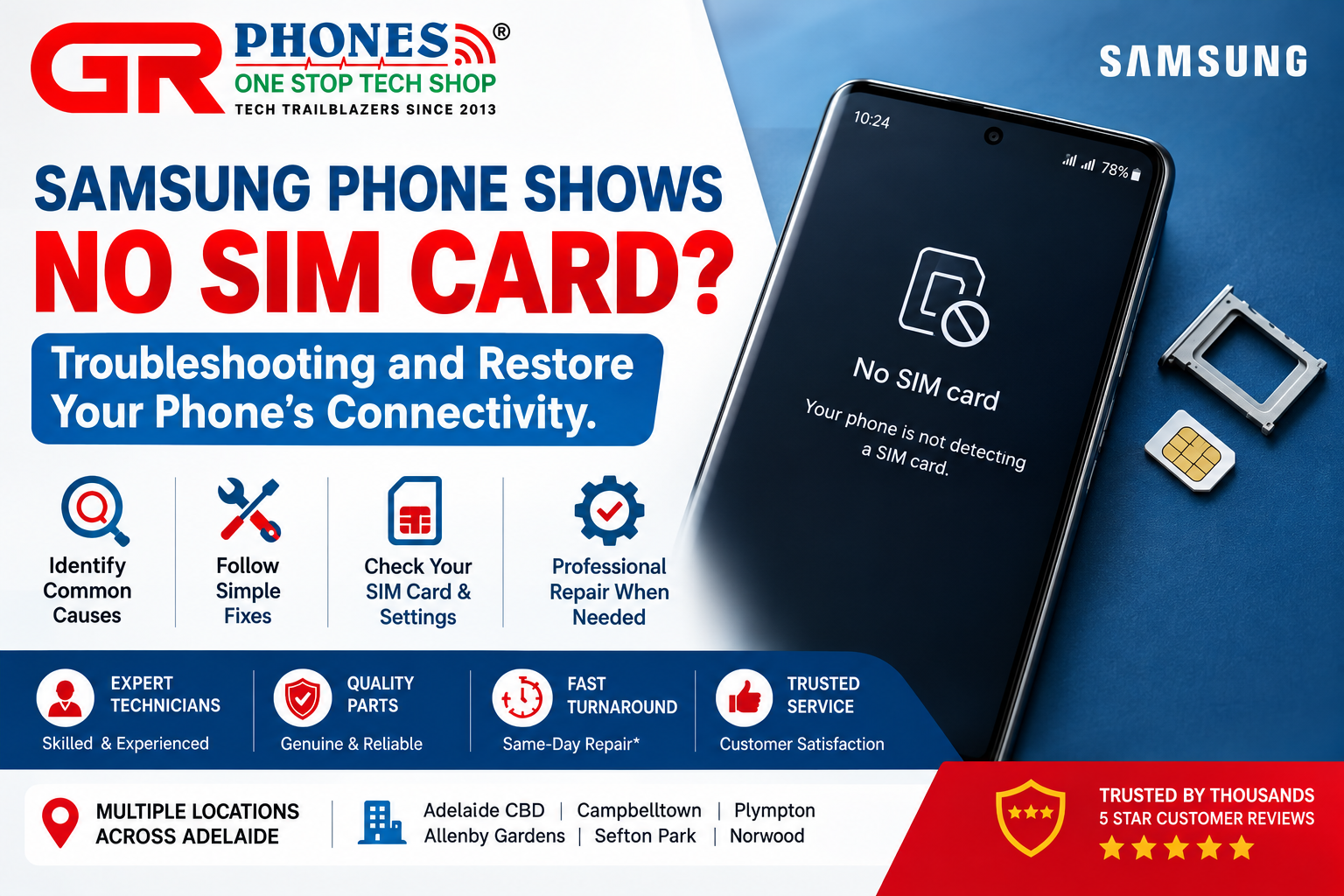
Have you inserted your SIM card into your Samsung phone, but the screen says “No SIM card detected”? This problem can be frustrating. You may be unable to make calls, receive OTPs, or use mobile data.
Several issues can cause this problem. Your SIM card might be damaged. The SIM tray may not be fitted correctly. Sometimes, a software error can also stop your phone from detecting the SIM card.
The good news is that some problems are easy to fix at home. This guide explains the common causes, simple troubleshooting steps, and signs that your Samsung phone may need professional repair.
Why Does Your Samsung Phone Show No SIM Card?
Your Samsung phone needs to detect the SIM card before it can connect to your mobile network. If the phone cannot read the card, it may display a “No SIM card” message.
This does not always mean your SIM card is damaged. The problem could be related to the SIM tray, phone settings, or internal components.
Think about when the problem started. Did it happen after a software update? Did you drop your phone recently? Or did the message appear after removing the SIM card?
These details can help you identify the possible cause.
Common Reasons Your Samsung Phone Cannot Detect a SIM Card
1. The SIM Card Is Not Positioned Correctly
A SIM card must sit correctly inside its tray. If it moves out of position, your phone may not recognise it.
This can happen after removing and reinserting the SIM tray.
How to fix it: Turn off your phone and remove the SIM tray using the correct eject tool. Check the card’s position and make sure it fits the tray. Then, reinsert the tray gently.
Never force the tray into the phone. You could damage the tray or internal contacts.
2. The SIM Card Is Damaged
SIM cards can become worn or damaged over time. Scratches, bending, or worn contacts may prevent your phone from reading the card.
How to check: Try your SIM card in another compatible phone. If the second phone cannot detect it either, contact your mobile network provider. They can check your SIM card and arrange a replacement if necessary.
3. Dust Inside the SIM Tray
Dust and debris can collect around the SIM tray. This may interfere with the connection between the SIM card and the phone.
Turn off your phone before inspecting the tray. Clean accessible surfaces gently with a soft, dry, lint-free cloth.
Do not insert metal objects into the SIM slot. Avoid liquids and excessive pressure. If you suspect debris inside the phone, ask a qualified technician to inspect it.
4. A Temporary Software Problem
Sometimes, a software error can affect SIM detection. The problem may appear after an update, restart, or unexpected system crash.
How to fix it: Restart your Samsung phone first. Then, check Settings for available software updates.
Keep your phone updated with official software. However, remember that an update cannot fix a physically damaged SIM reader.
5. Incorrect Network Settings
Your phone may detect the SIM card but fail to connect to the mobile network. You might see messages such as “No service” or “Emergency calls only.”
These messages are different from “No SIM card,” although the symptoms can sometimes seem similar.
Open Settings and look for SIM manager or Mobile networks. Check whether the correct SIM is enabled. If you use both a physical SIM and an eSIM, make sure you select the correct line.
You can also consider resetting your network settings if the problem continues. Review the confirmation screen first because this may remove saved Wi-Fi and other network preferences.
6. A Faulty SIM Tray or SIM Reader
If your SIM card works in another phone, the problem may be with your Samsung device.
A bent tray or damaged SIM reader can prevent the phone from detecting the card. This can happen after a drop or improper SIM insertion.
If basic troubleshooting does not help, arrange a professional inspection. A technician can check the tray, reader, and related components.
How to Fix a Samsung Phone That Says No SIM Card
Try these steps in order. Start with the simplest solutions before considering a repair.
Step 1: Restart Your Phone
Restarting can resolve temporary software errors. Open the power menu and select Restart.
Once your phone turns on, wait a few seconds. Check whether the SIM card is detected.
Step 2: Remove and Reinsert the SIM Card
Turn off your phone before removing the SIM tray. Check the card for visible damage and confirm that it is positioned correctly.
Reinsert the tray gently. If it feels stuck or does not fit properly, do not force it.
Step 3: Toggle Airplane Mode
Airplane mode temporarily disables wireless connections. Turning it on and off may refresh your phone’s network connection.
Open Quick Settings and enable Airplane mode. Wait around 15 seconds, then turn it off.
This may help with network connectivity. However, it will not repair a damaged SIM card or reader.
Step 4: Check for Software Updates
Open Settings and select Software update. If an official update is available, follow the instructions on your screen.
Use a reliable internet connection and keep your battery sufficiently charged during the update.
Step 5: Test Your SIM Card in Another Phone
Insert your SIM card into another compatible phone, if available.
If it works, your Samsung phone may have a settings, software, tray, or reader problem. If the second phone cannot detect it, contact your network provider.
This simple test can help you narrow down the cause.
Step 6: Reset Network Settings
If your phone detects the SIM intermittently or struggles to connect, resetting network settings may help.
On many Samsung Galaxy models, this option is available under Settings, General management, and Reset. The exact menu name can vary by model and software version.
Read the confirmation screen carefully before continuing. A network reset does not normally erase personal photos or documents, but it may remove saved network connections.
When Should You Seek Professional Samsung Phone Repair?
Home troubleshooting can resolve many SIM-related problems. However, some issues require professional attention.
Consider arranging a repair inspection if:
- Your phone still displays “No SIM card” after restarting.
- Your SIM card works in another compatible phone.
- The problem started after you dropped your device.
- The SIM tray is bent, stuck, or difficult to remove.
- Your phone detects the SIM only when the tray is moved.
- The problem continues after checking the settings and installing updates.
Avoid repeatedly removing the SIM tray if the problem continues. You could cause further damage.
A qualified technician can inspect the SIM tray, reader, and related components. The correct solution depends on the actual fault.
If you need help with your device, explore our Samsung phone repair services to learn more about available repair options.
How to Prevent SIM Card Detection Problems
A few simple habits may help reduce the risk of SIM-related problems.
Handle the SIM tray carefully. Always use the correct eject tool. Remove and reinsert the tray gently.
Avoid unnecessary SIM changes. Frequent removal and insertion can increase wear on the tray and contacts.
Protect your phone from drops. A suitable protective case may help reduce the risk of physical damage.
Install official software updates. Updates can fix software bugs and improve system stability.
Replace damaged SIM cards. Contact your network provider if your SIM card is bent, cracked, or no longer works reliably.
Keep your phone away from moisture. Liquid exposure can damage internal contacts and other components. Follow the manufacturer’s guidance if your device gets wet.
For other device problems, you can also explore our phone repair services for more information.
Conclusion
A Samsung phone showing “No SIM card” does not always have a serious fault. The cause could be an incorrectly positioned SIM card, a temporary software error, or a damaged SIM reader.
Start by restarting your phone and checking the SIM card position. You can also test the card in another compatible device. These steps may help you identify the cause.
If your Samsung phone is not detecting the SIM card after these checks, consider having it inspected by a qualified technician. Early diagnosis can help you avoid unnecessary troubleshooting and restore your phone’s connectivity.
FAQs
1. Why does my Samsung phone say no SIM card when one is inserted?
Your phone may not detect the SIM because it is positioned incorrectly, damaged, or unable to connect with the internal reader. A software error or faulty SIM slot can also cause this problem.
2. Can a software update cause SIM detection problems?
A software bug or update-related issue can sometimes affect SIM detection or network connectivity. Restart your phone and check for official updates. Seek professional help if the problem continues.
3. How do I know if my Samsung SIM card is damaged?
Try the SIM card in another compatible phone. If it is not detected there either, contact your network provider to check the SIM card and account.
4. Will resetting network settings delete my photos?
A network settings reset does not normally delete personal photos, videos, or documents. However, it may remove saved Wi-Fi networks, Bluetooth connections, and other network preferences.
5. Why does my Samsung phone detect the SIM card sometimes?
Intermittent detection may indicate a loose tray, damaged contacts, a faulty SIM card, or a software problem. If the issue continues, arrange a professional inspection.
6. Should I replace my Samsung phone if it cannot detect a SIM card?
Not necessarily. The problem could be caused by a damaged SIM card, faulty tray, software issue, or repairable internal fault. Identify the cause before deciding whether to replace the phone.