
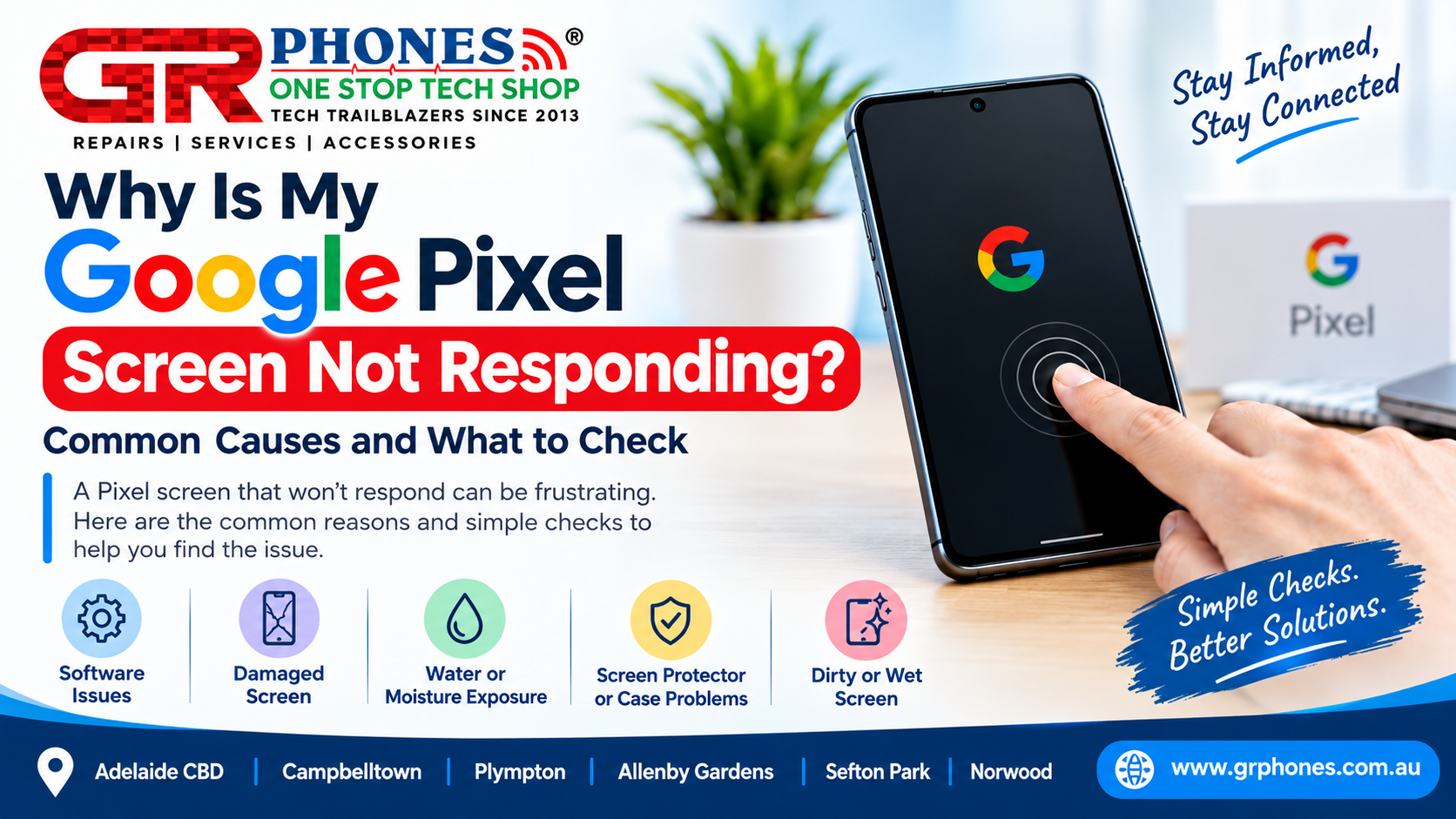
A Google Pixel with an unresponsive screen can be frustrating, especially when the phone appears to be switched on but does not respond when you tap or swipe. In some cases, the problem may be caused by a temporary software issue, while other situations can be related to the display, touch sensor, physical damage, moisture, or accessories.
Before assuming that your Google Pixel needs professional attention, there are several things you can check. Understanding the possible causes can help you identify whether the issue is temporary or whether the phone may require further inspection.
Common Reasons Your Google Pixel Screen May Not Respond
1. Temporary Software Glitch
One of the simplest reasons a Google Pixel screen may stop responding is a temporary software problem. An application may freeze, the operating system may encounter an error, or the phone may become overloaded.
If the phone is still displaying content but touch input is not working, try restarting the device. A restart can clear temporary software problems and allow the touchscreen to function normally again.
If the problem happens only occasionally and disappears after restarting, a temporary software issue may have been responsible.
2. The Phone May Be Frozen
Sometimes a Pixel may appear to be working but is actually frozen. You may see the same image on the display while taps and swipes have no effect.
In this situation, a normal tap may not be enough to resolve the problem. A forced restart can sometimes help restore the device when the screen or system has become unresponsive.
If the phone repeatedly freezes, however, the problem may require additional troubleshooting rather than repeated restarts.
It can be useful to pay attention to when the freezing occurs. For example, if it happens while using a particular application, after an update, or when the phone is running low on storage, these details may help identify the cause.
3. A Damaged or Cracked Screen
Physical damage is another common reason for touchscreen problems. A drop, impact, pressure, or crack can affect the display and its touch-sensitive components.
The screen does not always need to be completely shattered for touch problems to occur. You may notice that only part of the screen stops responding, or certain areas may register touches incorrectly.
If the touchscreen problem started immediately after the phone was dropped or impacted, physical damage should be considered as a possible cause.
If the damage is affecting touch functionality, you can explore a Google Pixel screen repair option for further assistance.
4. Water or Moisture Exposure
Moisture can also affect touchscreen performance. If your Google Pixel has recently been exposed to water, rain, spills, or high humidity, the touchscreen may behave unexpectedly.
Liquid can affect different internal components, so the problem may not always be limited to the screen itself.
If moisture is suspected, avoid repeatedly charging or operating the phone until you understand the situation. Do not use excessive heat to dry the device, as this can potentially cause additional damage.
A phone that continues to show touchscreen problems after moisture exposure may need a professional phone repair service for proper inspection.
5. Screen Protector or Case Problems
Sometimes the problem is not with the Pixel itself. A poorly fitted screen protector, damaged screen protector, or certain accessories may interfere with touch sensitivity.
If the touchscreen problem began after installing a new screen protector, check whether it is properly aligned and securely attached. Also inspect the screen for dust, dirt, or bubbles beneath the protector.
You can also check whether the phone’s case is putting pressure on the edges of the display.
If removing or adjusting the accessory restores normal touch response, the problem may have been related to the accessory rather than the phone’s internal hardware.
6. Dirty or Wet Screen
A touchscreen needs a clean surface to register touch accurately. Water, oil, dust, or other substances on the display can sometimes affect responsiveness.
Clean the screen gently with an appropriate soft, dry cloth. Avoid using excessive liquid directly on the phone.
If the screen works normally after cleaning, the issue may have been caused by surface contamination rather than a serious hardware problem.
What Should You Check When Your Pixel Screen Stops Responding?
Start with the simplest checks before assuming there is a hardware fault.
First, check whether the phone is powered on and whether the display is showing anything. If the screen is visible but does not respond to touch, try restarting the device and see whether touch functionality returns.
Next, inspect the screen for visible cracks or signs of impact. Think about whether the phone was recently dropped, exposed to moisture, or subjected to unusual pressure.
You should also consider anything that changed shortly before the problem appeared. A recent application installation, software update, new screen protector, or physical incident can provide useful clues.
If possible, check whether the entire screen is unresponsive or whether only a particular section has stopped working. This difference can provide useful information when troubleshooting the device.
For example, if only one part of the screen does not respond, physical damage or a problem with the touch-sensitive layer may need to be considered. If the entire screen stops responding after a software problem, the cause may be different.
What If the Google Pixel Screen Still Does Not Respond?
If basic troubleshooting does not restore touchscreen functionality, the problem may require further diagnosis.
A persistent unresponsive screen can sometimes indicate an issue involving the display assembly, touch functionality, internal components, or damage caused by an accident or moisture.
Avoid repeatedly pressing or tapping a damaged screen in an attempt to make it work. If the device has suffered physical or liquid damage, continued use may not resolve the underlying problem.
It is also better to avoid opening the phone or attempting an unverified screen repair if you are unsure about the cause. Incorrect handling can potentially cause additional damage to internal components.
If your Google Pixel continues to have touchscreen problems, consider having the device inspected by a professional. A Google Pixel repair service can help determine whether the issue is software-related or requires attention to the screen or other components.
Can a Cracked Pixel Screen Cause Touch Problems?
Yes, a cracked screen can sometimes affect touch functionality.
A Google Pixel may continue displaying images normally even when the touch function has been affected. You may notice that some areas respond while others do not, or that touches are registered incorrectly.
The extent of the problem can depend on where and how the screen was damaged.
If the touchscreen stopped working after a drop or impact, physical damage should be considered before assuming that the issue is only software-related.
What If Only Part of the Pixel Screen Is Not Responding?
If only a particular area of the screen is not responding, check the display for cracks, pressure marks, dirt, moisture, or other visible damage.
You can also check whether a screen protector or case is interfering with the affected area.
If the same section continues to remain unresponsive after basic checks, the problem may involve the touchscreen or display assembly and may require professional inspection.
How to Avoid Making the Problem Worse
When your Google Pixel screen stops responding, avoid making the situation worse by trying random repair methods.
Do not apply excessive pressure to the screen, especially if it is cracked. Avoid using excessive heat if you suspect water or moisture damage.
If the phone has been exposed to liquid, avoid repeatedly connecting it to a charger while it may still contain moisture.
It is also a good idea to back up important data whenever the phone is still accessible. If the device becomes completely unusable later, having a recent backup can help protect important photos, contacts, documents, and other information.
Final Thoughts
A Google Pixel screen that is not responding can have several possible causes, ranging from a temporary software glitch to physical screen damage.
Restarting the phone, checking the screen, removing potential accessory-related causes, and considering recent drops or moisture exposure are useful first steps.
If the touchscreen remains unresponsive after basic checks, professional diagnosis may be the next appropriate step. Identifying the cause before attempting further repairs can help prevent unnecessary damage and ensure that the correct solution is considered.
FAQs
Why is my Google Pixel screen not responding to touch?
A Pixel touchscreen may stop responding because of a temporary software problem, a frozen system, physical screen damage, moisture, dirt, or an issue with a screen protector.
Can restarting a Google Pixel fix an unresponsive screen?
A restart can resolve some temporary software or system issues. If the screen remains unresponsive after restarting, the cause may require additional troubleshooting.
Can a cracked Pixel screen cause touch problems?
Yes. Physical damage can affect touchscreen functionality. Some damaged screens may continue displaying an image while certain areas no longer respond correctly to touch.
Can water cause a Google Pixel touchscreen to stop working?
Moisture exposure can cause abnormal touchscreen behaviour. If your Pixel has been exposed to liquid and the screen is not responding, further inspection may be necessary.
What should I do if only part of my Pixel screen is not responding?
Check for visible damage, dirt, moisture, or a screen protector issue. If one area consistently fails to respond, professional inspection can help identify whether the display or touch components are affected.